Task drawer
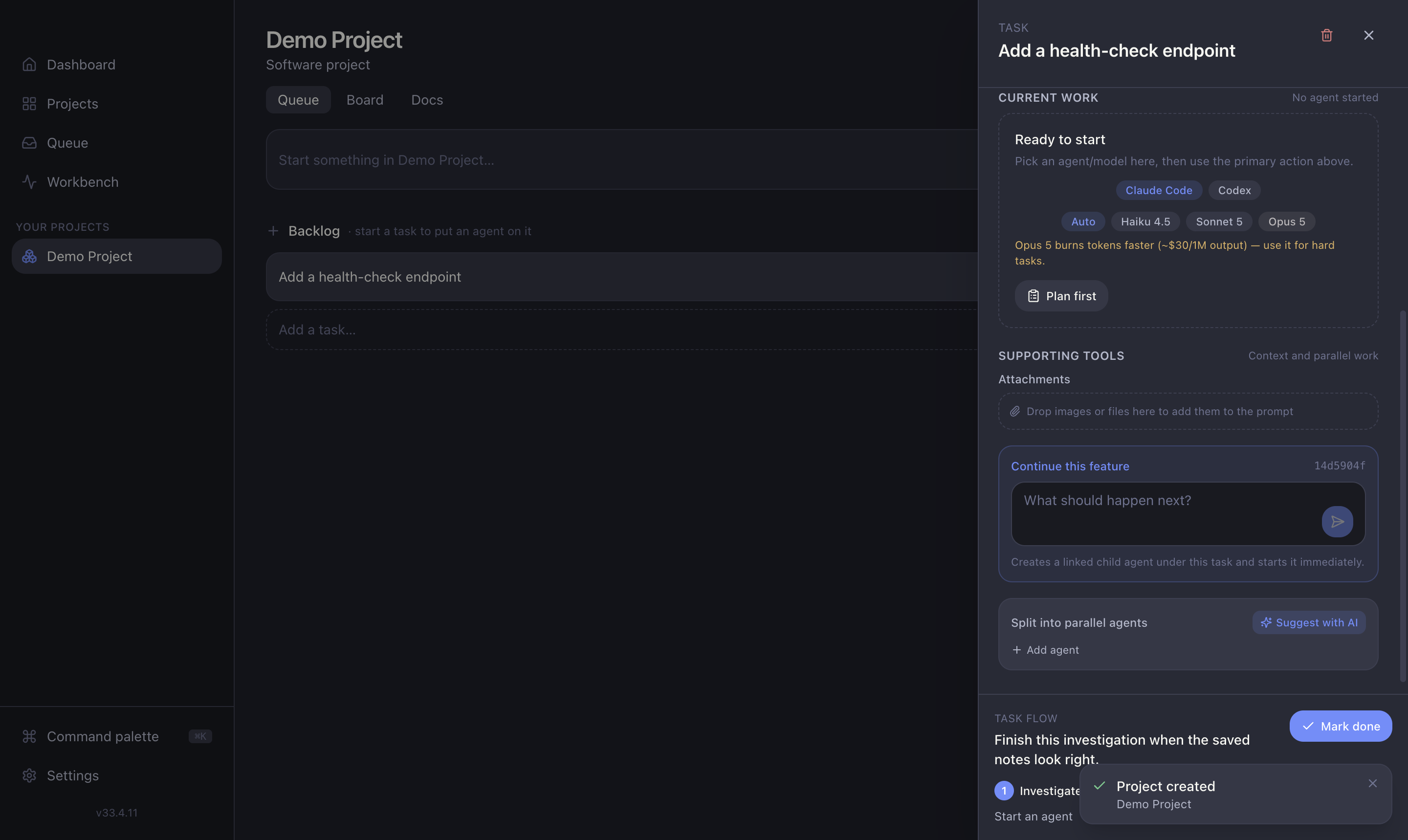
Click any task to open its drawer — a full-height side panel that is mission control for that task. From here you start agents, answer questions, review changes and ship.
The task flow stepper
The top of the drawer shows a Task flow stepper and a single primary action button that always points at the next thing to do:
Build → Review → Save → Publish → PR
- Build — start or continue the coding agent.
- Review — check the diff and review findings.
- Save — merge the approved work into the task branch.
- Publish — push the branch to origin.
- PR — open the pull request (or Finish for Azure tasks).
The primary button (e.g. Start now, Review changes, Save to branch) runs whichever step is next.
Starting work
For a fresh task, the drawer's Ready to start section lets you choose:
- Agent — Claude Code or Codex.
- Model — Auto, Haiku, Sonnet, Opus or Fable.
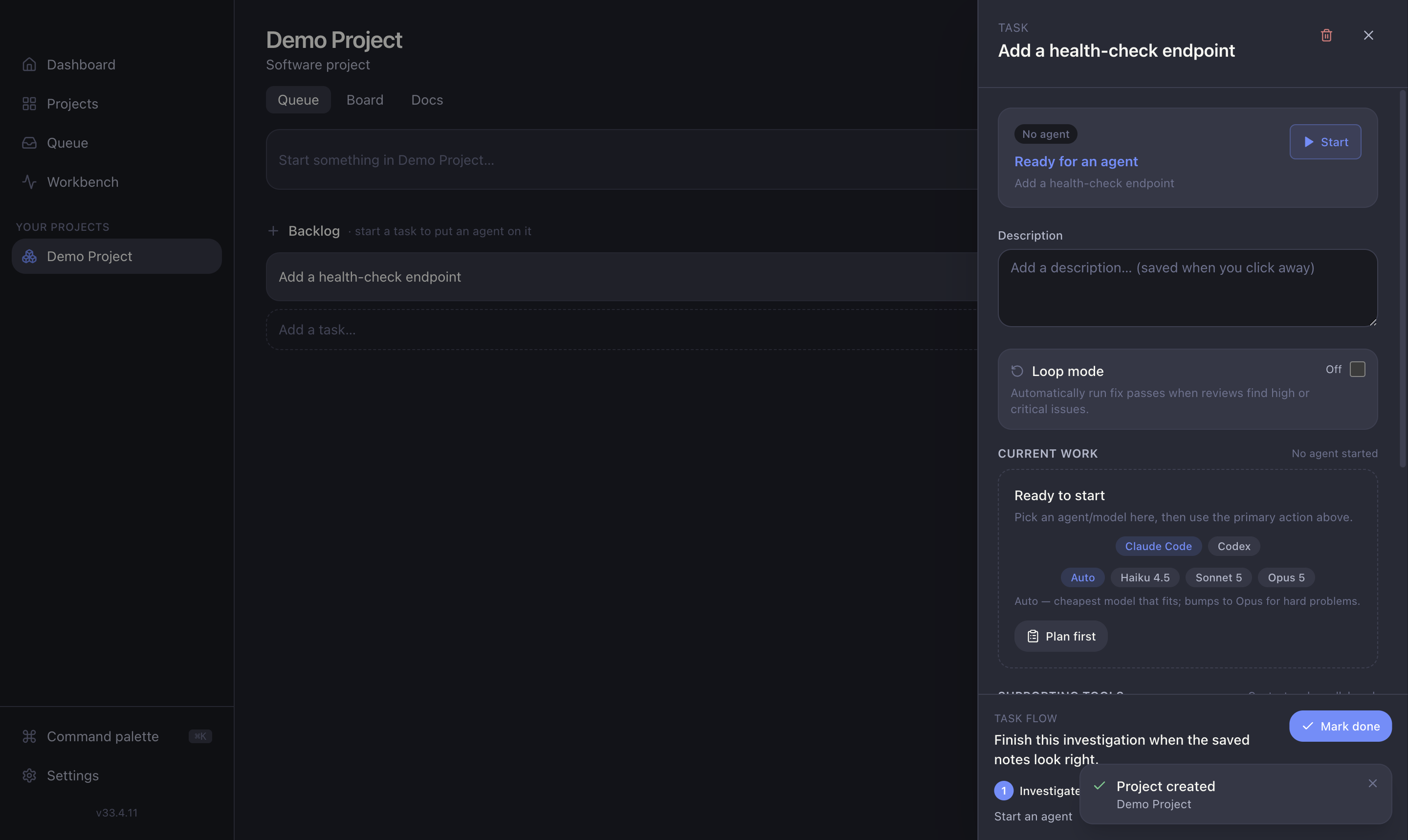
Then click the primary Start now to launch a session, or Plan first to have the agent produce a plan before writing code.
Expensive models warn
Picking Opus or Fable shows a warning — they burn quota faster. Coding defaults to Sonnet for a reason. See Model routing.
Parallel agents
A task can run several agents at once. Use Split into parallel agents to fork parallel work — for example, to race two approaches to the same problem. Each agent gets its own isolated git worktree and runs independently. Suggest with AI can propose how to split the work for you.
Supporting tools
- Attachments — add files or screenshots as context for the agent.
- Description — editable inline; feeds the agent's prompt.
- Delete task — removes the task and cascades to its agents, sessions and reviews (two-click confirm).
Shipping
Once work is approved, the stepper walks you through Save → Publish → PR. Full detail in Shipping.