Projects
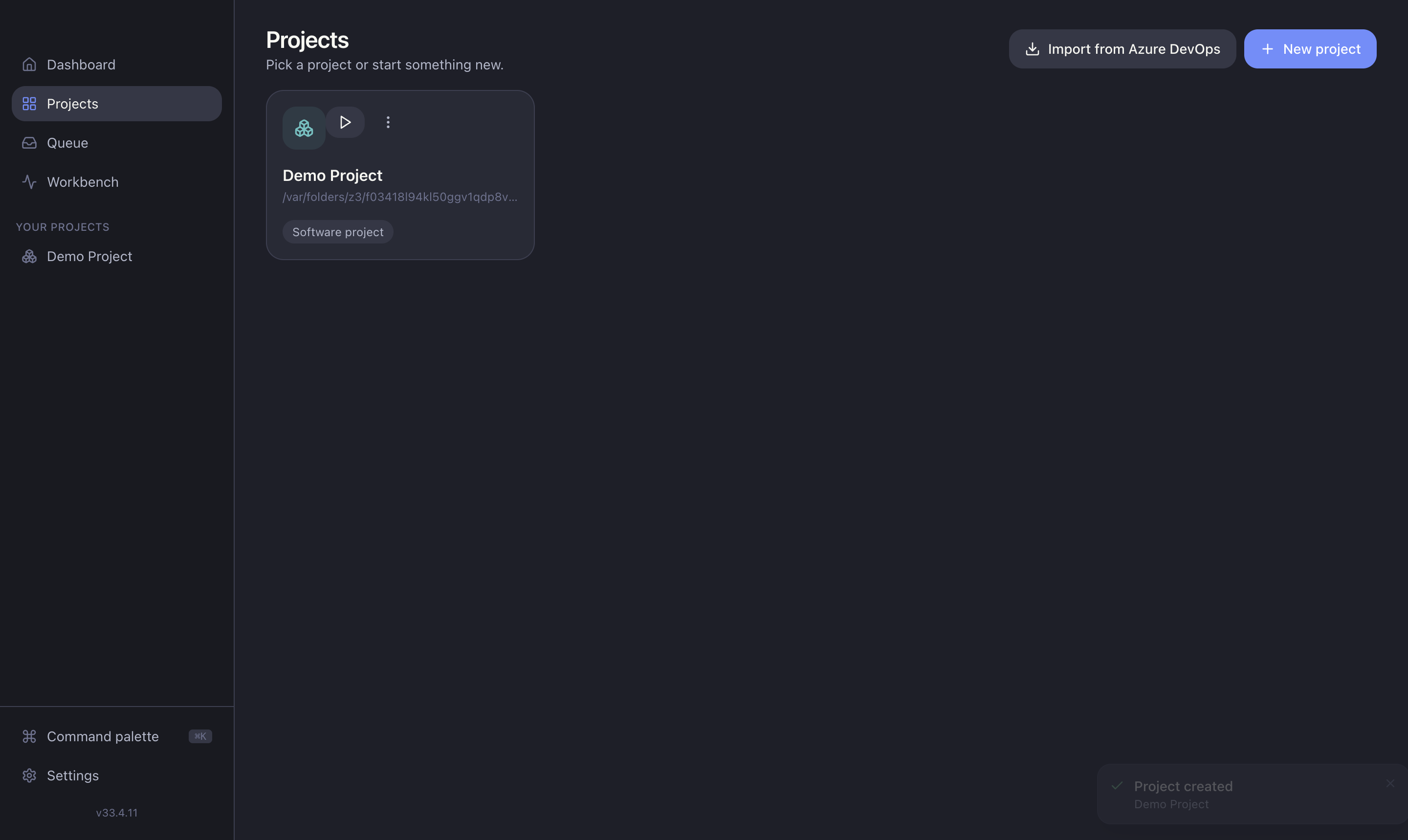
The Projects view is where you create and manage every project. Open it from Projects in the sidebar.
Creating a project
Click New project and fill in the dialog:
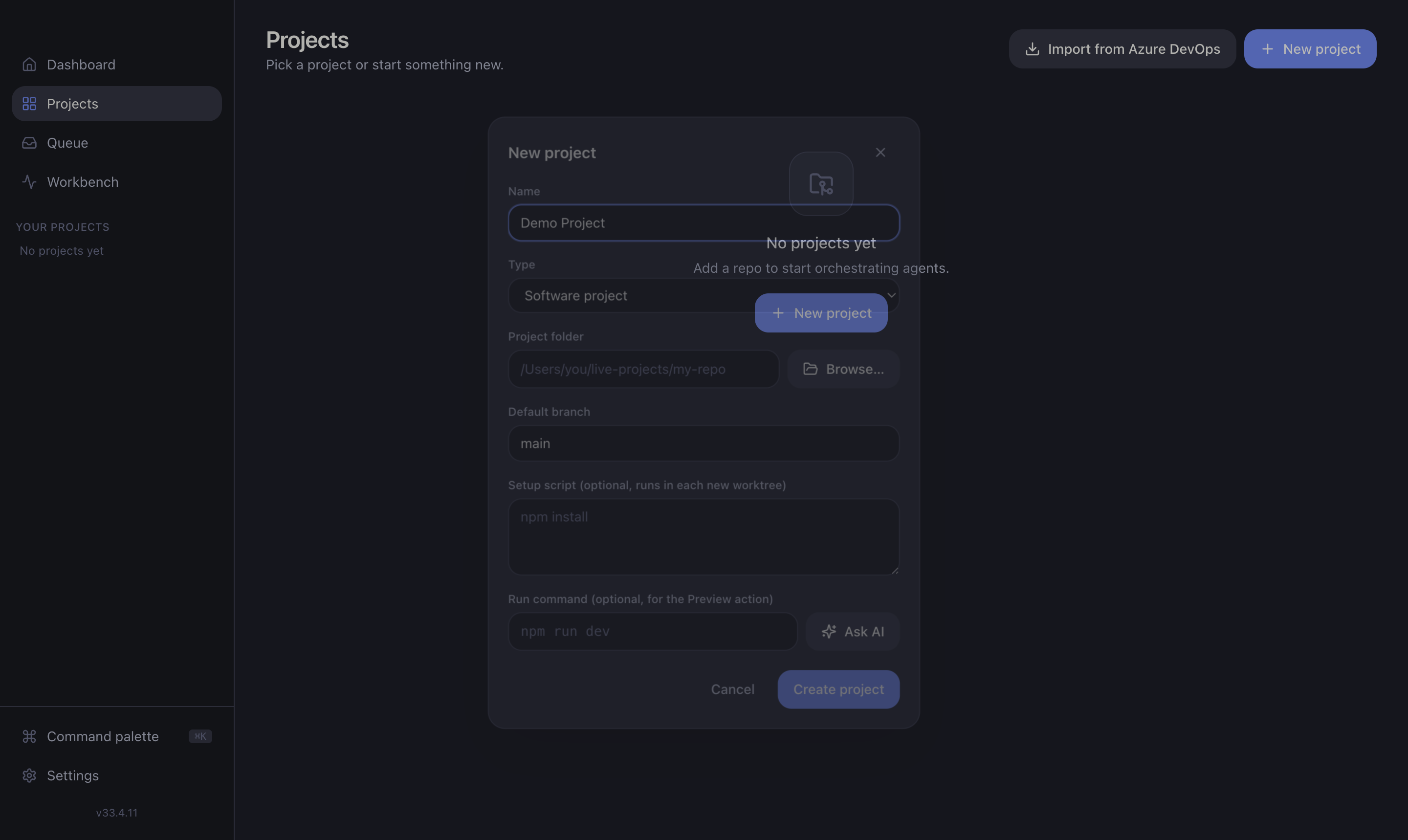
- Name — a memorable label; shown in the sidebar.
- Repository path — the local git repo agents will work in (software projects only).
- Base branch — the branch tasks branch off, usually
main. - Preview command (optional) — the dev-server command for the Preview panel, e.g.
npm run dev.
TIP
You can create a project against any local git repo. Nothing is pushed until you ship — see Shipping.
Software vs Azure projects
- Software project — pairs with a git repo. Runs coding sessions, reviews, and pull-request workflows.
- Azure project — needs no repo. Runs read-only
azinvestigations and writes findings to project docs. See Azure investigations.
Import from Azure DevOps
If you've connected Azure DevOps in Settings, use Import from Azure DevOps to batch-create tasks from work items — turning a sprint backlog into AICoder tasks in one step.
Managing projects
Each project card gives you:
- Open — jump into the project's Queue and board.
- Edit — change name, repo path, base branch, or preview command.
- Delete — removes the project (and its tasks, sessions and reviews).
- Filter — a search box appears once you have more than a handful of projects.